How to use Viewer PDF password protected
Learn how to protect your PDF documents with password encryption in Document Studio Viewer. This guide walks through enabling password protection on generated PDFs.
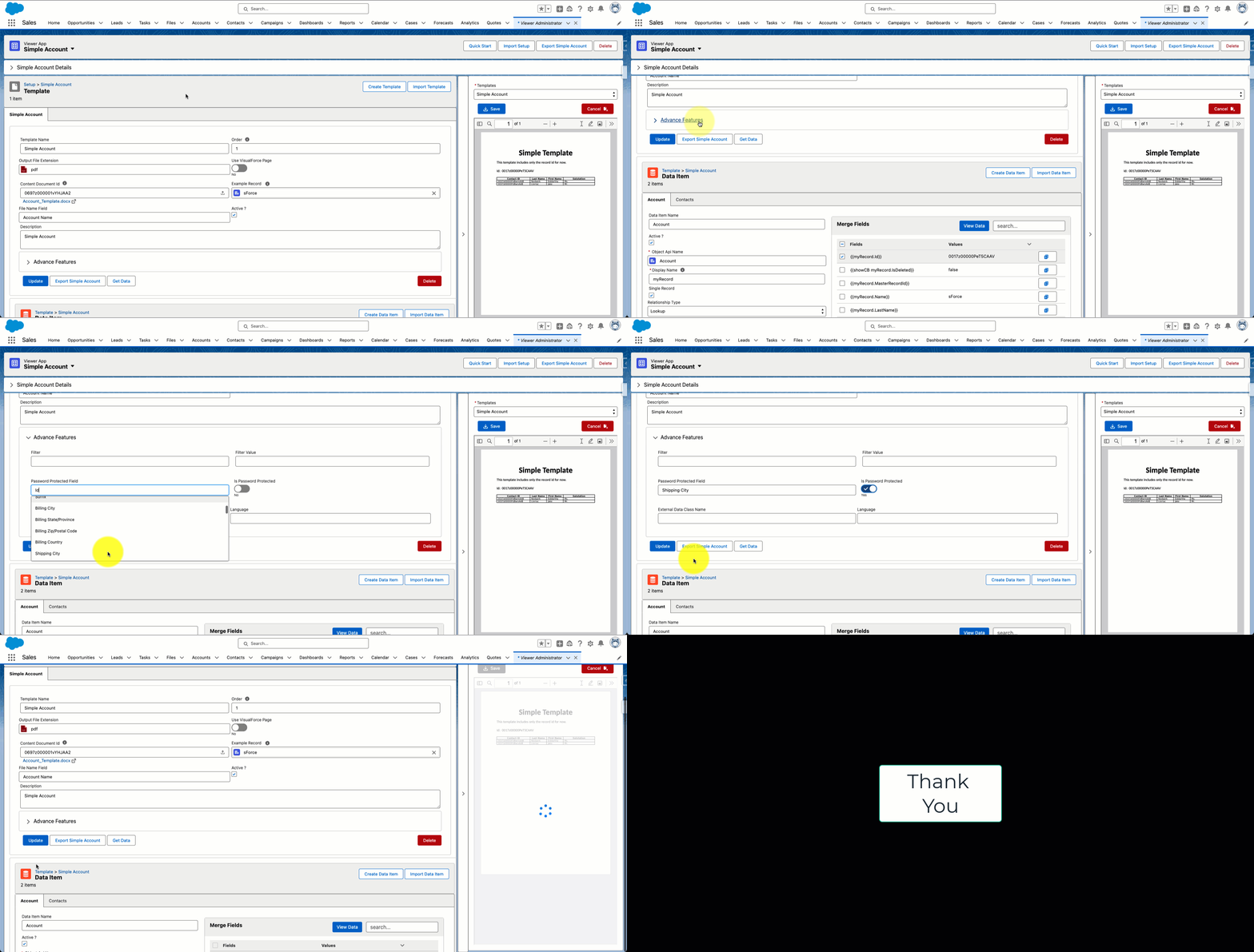
When PDF password protection is enabled, the generated PDF can only be opened by users who know the password stored in the selected Salesforce field.
Step 1: Prepare your template
Make sure your template is already created and ready to update. The password protection setting is configured at the template level.
Step 2: Navigate to Advanced Features
Find the collapsible section titled "Advanced Features" in the template section, and click to expand it.
If you want each record to have a different password, prepare a Salesforce formula field or text field in advance.
Step 3: Set up "Password Protected Field"
Choose a field from the primary object that will provide the password.
You can use:
- a standard or custom text field
- a formula field that builds a password dynamically for each record
Password Field Options
- Text Field – Enter password directly
- Formula Field – Auto-generate or derive password from record data
Use a formula field when you want passwords to be generated automatically from record values, instead of being entered manually.
Step 4: Enable "Is Password Protected"
Enable the "Is Password Protected" option to activate password protection for PDF generation.
Once enabled, Viewer will use the selected password field when creating the PDF.
Step 5: Update the template
Click the "Update" button to save your changes. Once saved, the document will be generated with password protection enabled.
Verification
Preview the document in the right-hand panel to confirm password protection is applied.
Make sure the selected password field contains a value. If the password field is empty, users may not be able to open the PDF as expected, or the output may not match your security requirements.
Best Practices
- Use Formula Fields for consistent, auto-generated passwords based on record data
- Test password-protected PDFs before deploying to users
- Document Passwords – Ensure users know how to receive/access passwords for secured PDFs
- Security – Avoid hardcoding passwords; use dynamic values when possible